The Recursive Search That Ate My AI Coding Session
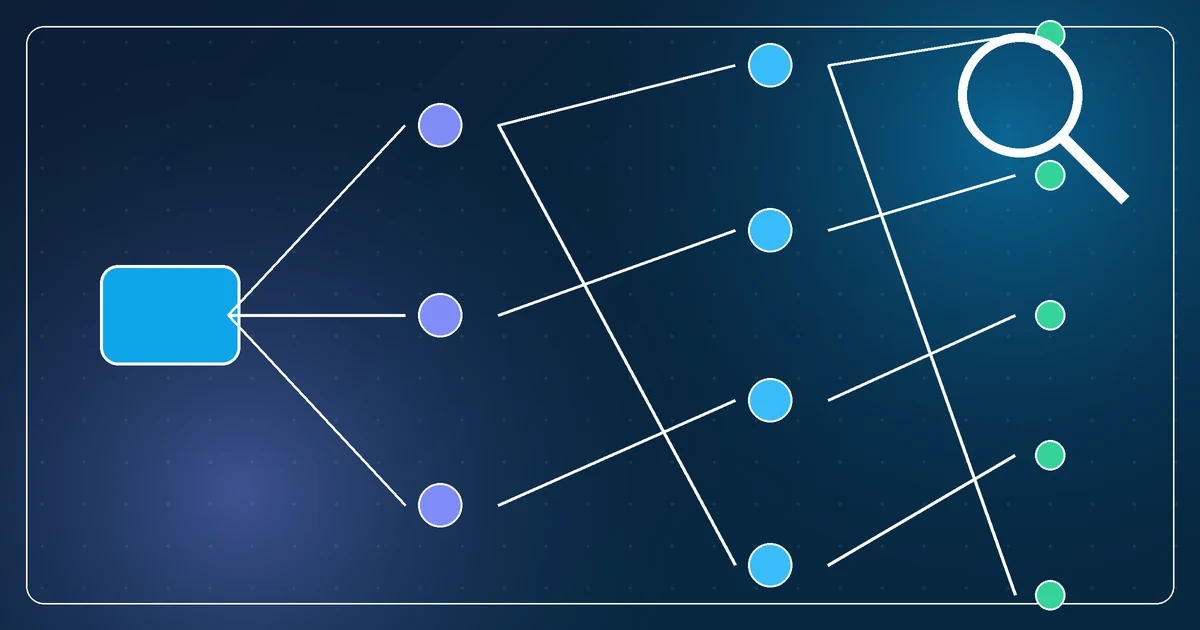
I asked an AI coding assistant to find a configuration file on my Windows machine.
It launched a recursive search from C:\Users\Admin.
Then nothing happened.
The terminal did not fail. The assistant did not report an error. It simply appeared to stop working while the search crawled through years of files, caches, development projects, and more node_modules directories than anyone should have to think about.
I was the one who eventually asked whether something had gone wrong.
It had.
The command was valid
This is an awkward kind of failure because the search command itself was not incorrect. It was doing exactly what it had been asked to do.
The problem was its scope.
A user profile can contain:
- several development projects
- dependency directories with tens of thousands of files
- browser and application caches
- hidden configuration folders
- cloud-synchronised directories
- archives, downloads, and old backups
Starting at the profile root turned a targeted configuration lookup into a tour of the entire machine.
We hit the same problem in separate sessions while searching for Cloudflare and GitLab configuration. That repetition made it clear this was not bad luck. It was a bad default.
Why it looks like the AI has frozen
Long file searches are especially confusing in an agent session.
The tool may produce no output until it finds a match or finishes. While it runs, the assistant may be waiting for the tool and unable to explain what is happening. From the user's side, the conversation looks dead.
A human at a terminal might notice disk activity, interrupt the command, and narrow the search. An agent needs to recognise that risk before it starts.
Running the same broad search as a background task does not really solve the problem. It keeps the chat responsive, but the machine is still doing unnecessary work and somebody still has to monitor and stop it.
The better fix is to avoid the broad search.
Search where the answer is likely to be
Configuration and credential tools usually have predictable locations.
Before scanning the disk, check:
- Environment variables
- The tool's normal configuration directory
- The current project's configuration files
- The user's application-data folder for that specific tool
- The CLI's own status or authentication command
For example, wrangler whoami can answer a Cloudflare account question more directly than searching every file whose name contains "wrangler." A GitLab CLI configuration belongs in a small set of known locations. A project deployment setting is more likely to be in its repository than somewhere else in the user profile.
These checks are faster and produce better evidence.
Narrow by path, name, and content
Sometimes a file search is still necessary. In that case, I now expect three limits.
Start from the narrowest plausible directory. Search one project, one application-data folder, or one tools directory.
Exclude known heavy directories. Dependency folders, caches, build outputs, and version-control internals rarely contain the configuration being sought.
Search for the right kind of evidence. If the goal is to find a token setting, searching file contents for the variable name may be better than searching filenames for the product name.
A useful search plan might look like:
- check the environment for
GITLAB_TOKEN - check the GitLab CLI's documented config path
- inspect the current repository's remotes
- only then search a limited application-data directory
That sequence moves from cheap, likely checks to slower, less certain ones.
Put a boundary on the fallback
A broad fallback should still have limits.
Possible boundaries include:
- a maximum directory depth
- a short list of file extensions
- excluded directory names
- a time limit
- a clearly reported background task that can be cancelled
The assistant should also say what it is about to search. "I am scanning your entire user profile" gives me a chance to stop a poor plan. "I am checking the GitLab CLI config folder" is precise and reassuring.
Silence is part of the problem. If a tool may run for a while, the agent should explain why and what result it expects.
What I ask now
When I need an AI to locate something, I give it a search order:
Check environment variables and the tool's standard config locations first. If those fail, search only the relevant project or application folder. Do not recursively scan my entire user profile or dependency directories.
That prompt prevents a lot of wasted time, but the underlying rule belongs in the agent's working habits too.
Search is not free just because it is read-only.
A command can be safe for the files and still be expensive for the session.
The next time an AI appears to freeze while "just looking for a file," the problem may not be the model at all. It may be faithfully searching several million places where the answer was never likely to be.